



Publishing Your Cart on Live & Duplicate Themes
Deploying new software on your Shopify store can feel stressful. Nobody wants to break an active checkout or disrupt paying customers during peak shopping hours.
Supercart was engineered with an air-gapped staging workflow. Using Shopify’s Online Store 2.0 App Embed architecture, you can design, preview, and test your complete cart drawer on an unpublished duplicate theme before a single customer ever sees it.
1. The Publishing Workflow Overview
Step 1: Create or Clone a Cart Version in Supercart
  │
  ▼
Step 2: Select Your Target Shopify Theme (Duplicate or Live)
  │
  ▼
Step 3: Enable the Supercart App Embed in the Theme Customizer
  │
  ▼
Step 4: Click 'Publish' in Supercart & Preview Live Cart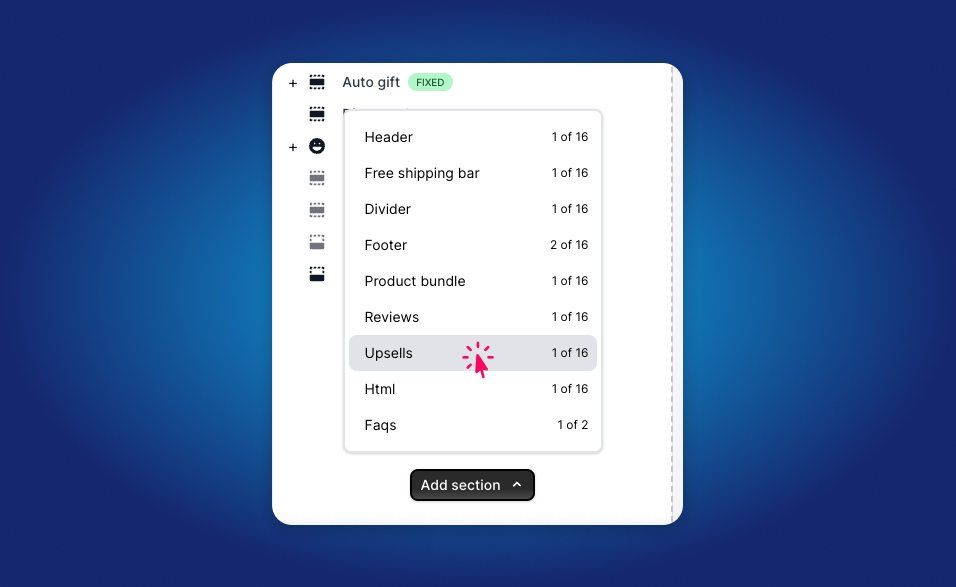
2. Step-by-Step Deployment Guide
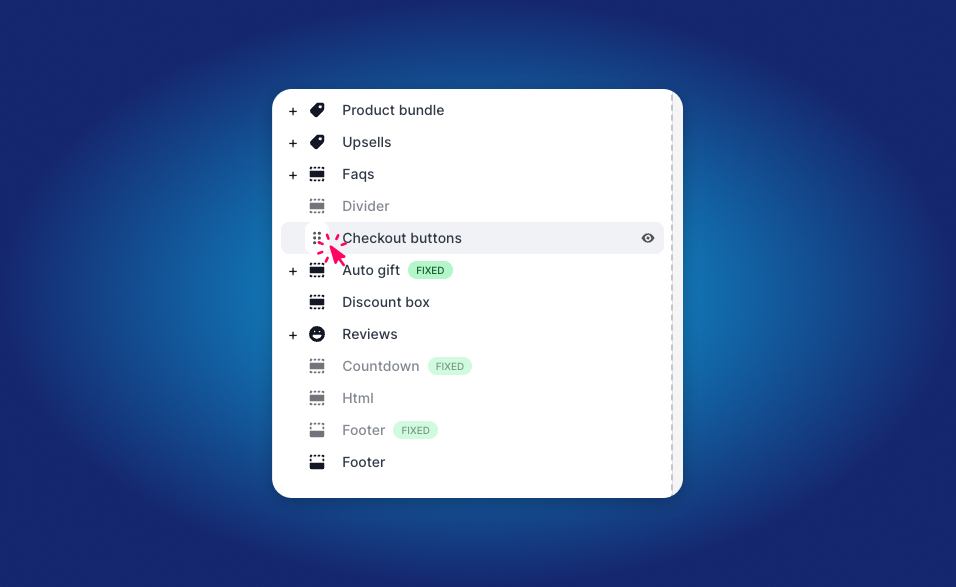
Step 1: Manage Your Cart Versions
Inside the Supercart dashboard, navigate to Cart Versions. Here, you will see your active and draft cart templates.
- Edit: Opens the Supercart visual drawer editor to modify colors, upsells, and widgets.
- Publish / Unpublish: A 1-click toggle that controls whether this cart version is active.
- Duplicate (Clone): Creates an exact copy of your cart template—perfect for running A/B tests or staging major seasonal revamps.
Step 2: Choose Your Target Theme
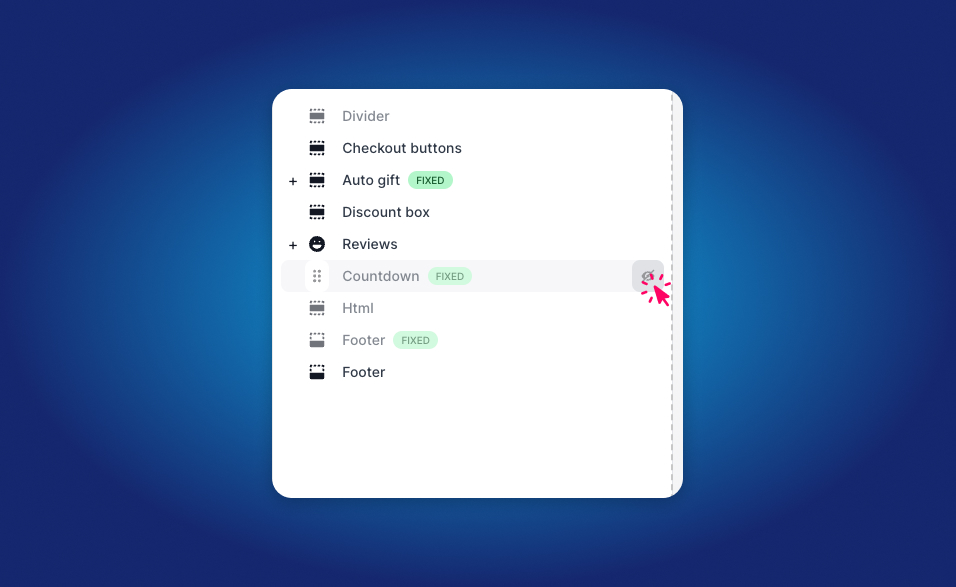
Supercart automatically detects all installed themes in your Shopify store (both your live theme and any unpublished staging themes).
- Click Choose a Theme inside the Supercart dashboard.
- Select the theme where you want Supercart to run. We recommend selecting a Duplicate / Unpublished Theme first for safe staging.
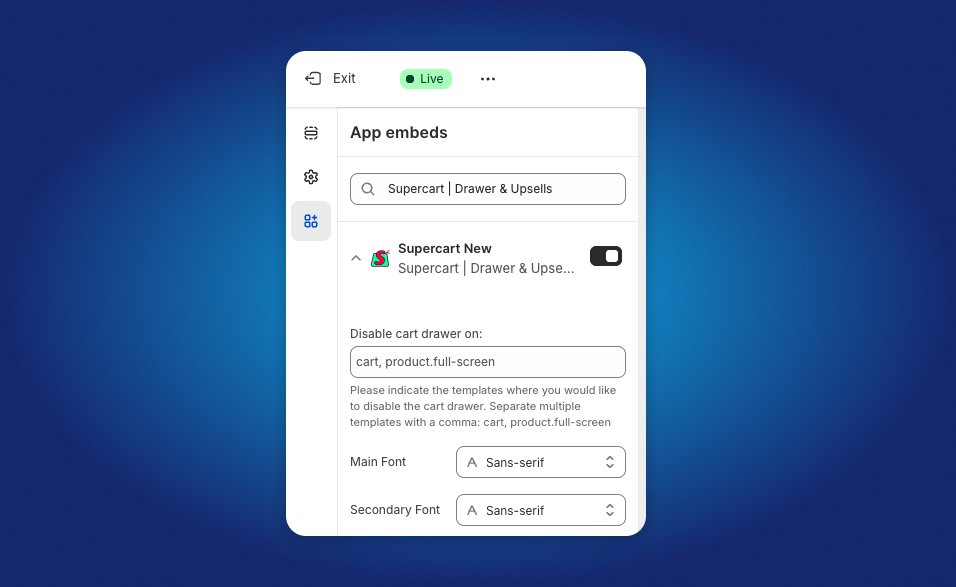
Step 3: Enable the App Embed in Theme Customizer
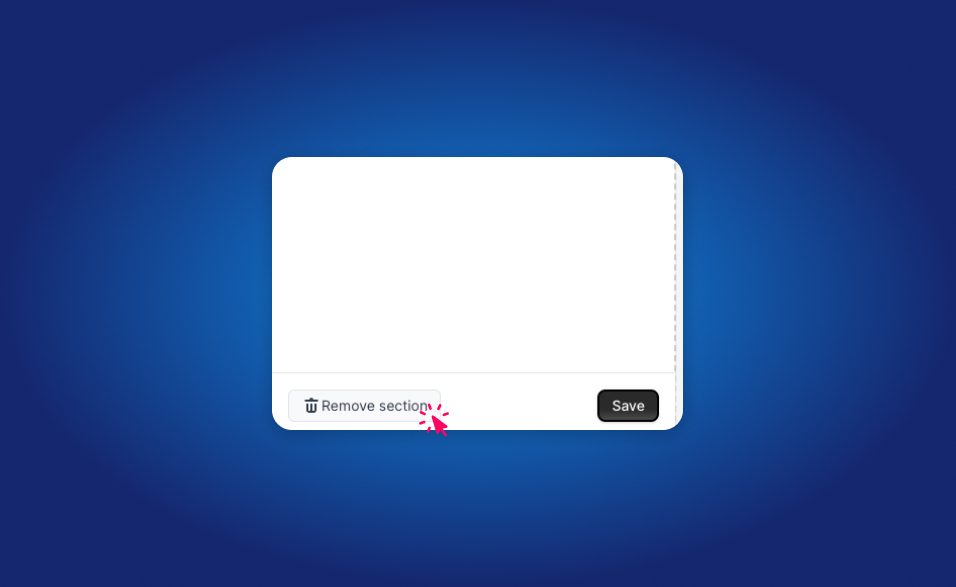
When you select your theme, Supercart provides a direct deep link to the Shopify Theme Customizer:
- Click Activate App Block or Go to Theme Customizer.
- Shopify will open in a new tab directly inside the App Embeds tab.
- Verify that Supercart is toggled ON.
- Click Save in the top-right corner of the Shopify Theme Editor.
[!IMPORTANT] Cart Drawer vs. Cart Page: Supercart functions as a modern slide drawer. Make sure your theme’s native cart type is set to “Drawer” or “Page” as desired. If your theme has an aggressive native pop-up, Supercart automatically captures standard
/cart/add.jsevents and opens smoothly.
Step 4: Toggle the Version to ‘Published’
Back in the Supercart dashboard, ensure the cart version switch is set to Published.
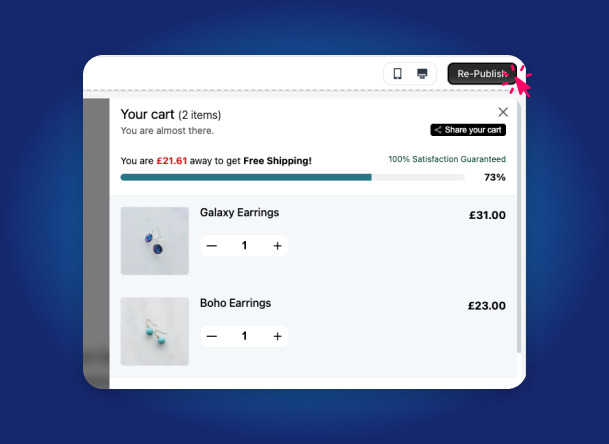
Once published, visit your store URL (or your duplicate theme preview URL) and click “Add to Cart” on any product. Your new high-converting Supercart drawer will glide out instantly!
3. Safe Duplicate Theme Staging (Best Practice)
For enterprise merchants and Shopify Plus brands processing thousands of daily checkouts, zero downtime is non-negotiable. Follow this 3-minute risk-free checklist:
- Duplicate your live theme: In Shopify Admin, go to Online Store → Themes → Actions → Duplicate.
- Name it clearly: e.g., “Dawn - Supercart Staged Test”.
- Enable Supercart only on that duplicate: Follow Step 3 above.
- Test the full purchase loop:
- Add products to cart.
- Verify shipping protection calculates properly.
- Add a 1-click upsell.
- Complete a test transaction using Bogus Gateway or a 100% off discount code.
- Switch Live Theme: Once verified, simply enable the app embed on your live theme, or publish the duplicate theme.
4. Automatic A/B Split Testing
What happens if you publish two cart versions at the same time?
Supercart’s built-in traffic router immediately activates A/B Split Testing. Traffic is automatically divided 50/50 between the two templates, allowing you to test:
- Different shipping protection pricing ($1.98 vs. 1.5% fee).
- Free shipping threshold amounts ($50 vs. $75).
- Upsell block placements (top of cart vs. below line items).
Learn how to set up your first split test in our A/B Split Testing Guide.