



In-Cart Discount Incentives & Spend Savings Tiers
“Spend More, Save More” promotions are one of the most reliable ways to lift Average Order Value without devaluing your brand.
However, if customers don’t know how close they are to unlocking the next savings tier, they will simply check out at their current basket size.
Supercart’s Discount Incentive Block continuously calculates the remaining dollar gap and motivates shoppers with dynamic, real-time prompts directly inside the slide drawer.
1. How the Tiered Discount Incentive Works
Tier 1: Spend $75  ──> Save $10 Off Order
Tier 2: Spend $120 ──> Save $20 Off Order
Tier 3: Spend $180 ──> Save $35 Off Order (Best Value Tier)
As the shopper browses and adds items:
- Cart Total = $62.00: The banner displays: “Add just $13.00 more to unlock $10 off your entire order!”
- Cart Crosses $75.00: The banner celebrates: ”✓ $10 Savings Unlocked! Add $45.00 more to save $20!”
Because the offer is framed around the shopper’s immediate financial gain, it feels like a reward rather than an aggressive upsell.
2. Visual Configuration & Styling
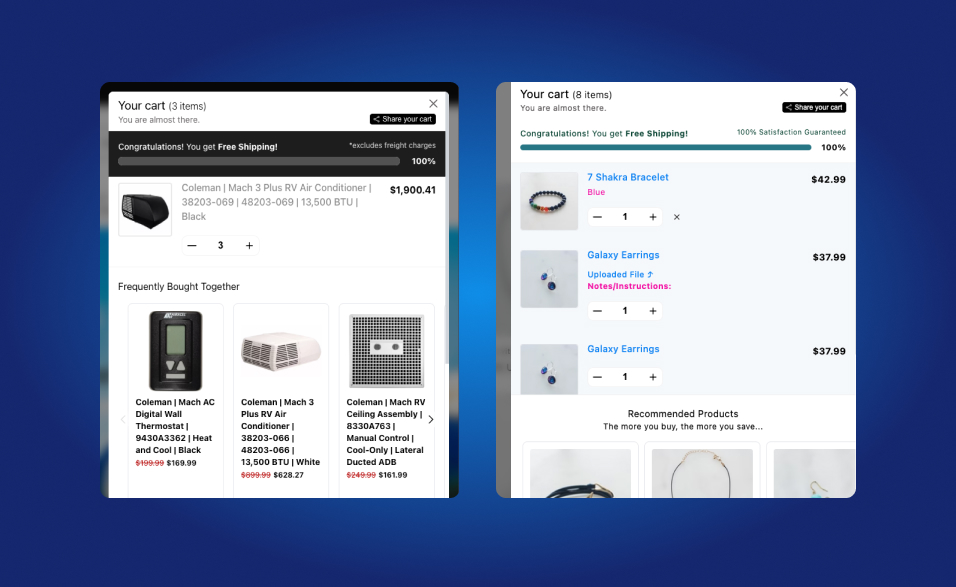
3. Setting Up Discount Incentives in Supercart
Step 1: Create Your Tiered Discounts in Shopify
Configure your tiered discounts in Shopify Admin under Discounts (using either Automatic Discounts or Shopify Functions).
Step 2: Add the Discount Incentive Block in Supercart
- Open the Supercart Visual Editor.
- Click + Add Block and choose Discount Incentive.
- Define your target spend tiers ($75, $120, $180) and corresponding savings amounts.
- Position the banner prominently right below the drawer announcement or line items.
Step 3: Configure Celebratory Animations
Choose from subtle green highlight badges, confetti micro-animations, or dynamic text highlights that trigger whenever a customer unlocks a higher tier.