



Visual Drag-and-Drop Cart Editor Guide
If you know how to use the Shopify Theme Customizer, you already know how to use Supercart.
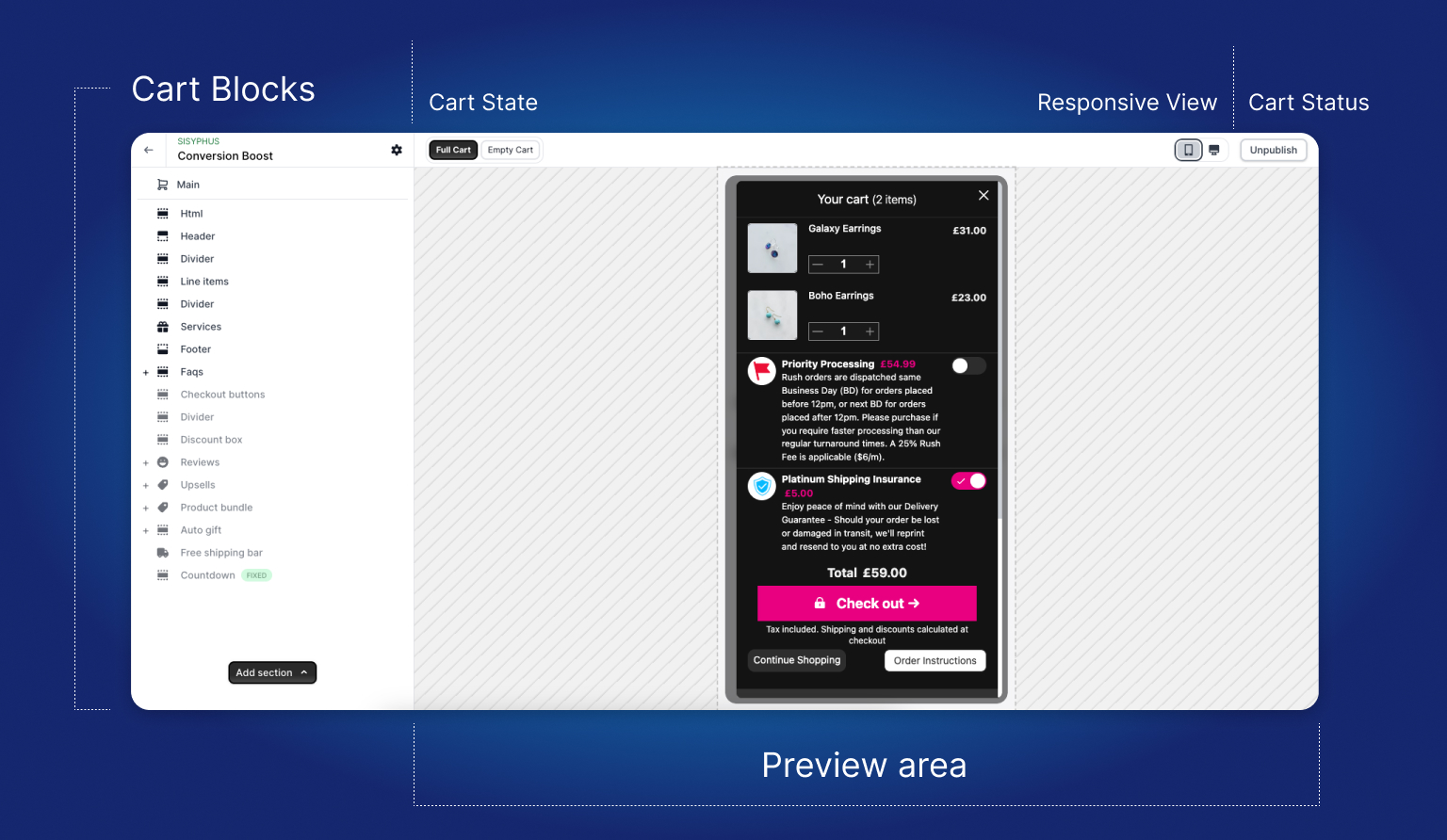
We engineered our cart editor to feel immediately familiar to Shopify merchants. You get a real-time interactive preview of your cart drawer on the right, paired with modular drag-and-drop blocks on the left.
Any change you make—whether tweaking a button color, adding an upsell section, or reorganizing trust badges—updates in sub-milliseconds without page reloads.
1. Understanding Cart Block Architecture
Supercart organizes your drawer into independent, modular blocks. This modularity gives you total freedom to design a bespoke cart experience tailored to your specific brand aesthetic.
Available block types include:
- Header & Announcement Bar: Displays branded titles, item counts, or promotional messages.
- Free Shipping & Rewards Bar: Dynamic tiered progress bars that gamify basket subtotals.
- Line Items List: Displays products, variants, quantities, price breakdowns, and remove buttons.
- Extra Services (Self-Funded Protection): Toggles for shipping protection, rush processing, warranty, and gift wrap.
- 1-Click Upsells & AI Bundles: Displays complementary product recommendations and starter kits.
- Discount Code Box: In-cart coupon validation so shoppers don’t abandon the drawer to test promo codes.
- Cart Notes & Gift Messages: Customer note fields for delivery instructions or gift card messages.
- Trust Badges & Reviews: Social proof widgets and security seals.
- Checkout Button & Subtotal: Displays calculated savings, subtotal, and the primary checkout CTA.
2. Managing Your Cart Blocks
Adding a New Block
- In the left editor sidebar, scroll down to the bottom and click + Add Block.
- Select the block type you wish to insert (e.g., Extra Services, Product Upsells, Cart FAQs).
- The new block is instantly appended to your cart preview.
Reordering Blocks
Every section of the drawer can be rearranged:
- Hover over the block name in the left sidebar.
- Click and hold the drag handle (the 6-dot icon).
- Drag the block up or down to your desired position and release.
- Your live preview immediately reflects the new layout hierarchy.
Hiding vs. Deleting Blocks
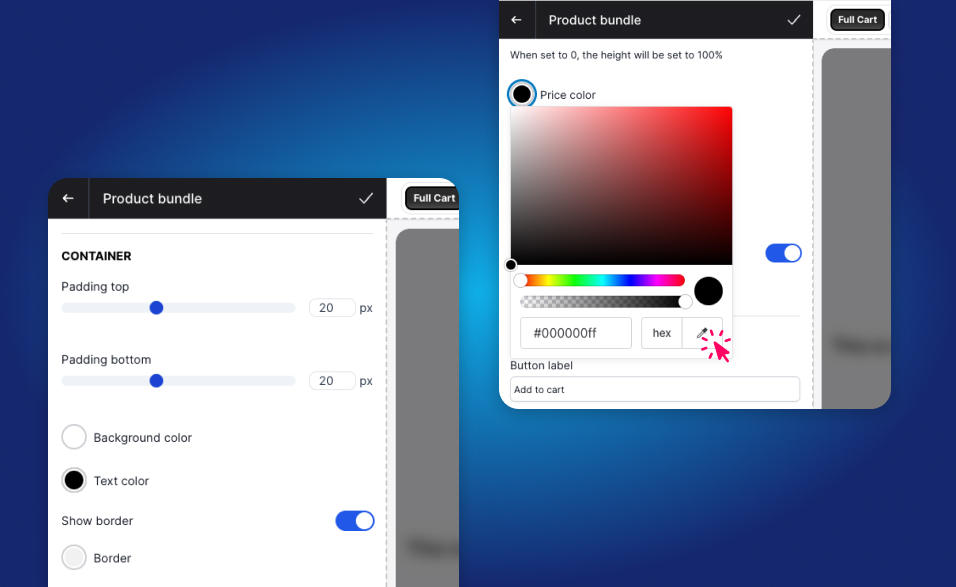
- Hide a Block (Eye Icon): Temporarily disables the block without deleting your saved copy or settings. Perfect for holiday-specific promos (e.g. gift wrap during Q4).
- Delete a Block (Trash Icon): Permanently removes the block from this cart version.
3. Customizing Individual Block Settings
Clicking on any block in the left sidebar opens its dedicated styling and content panel:
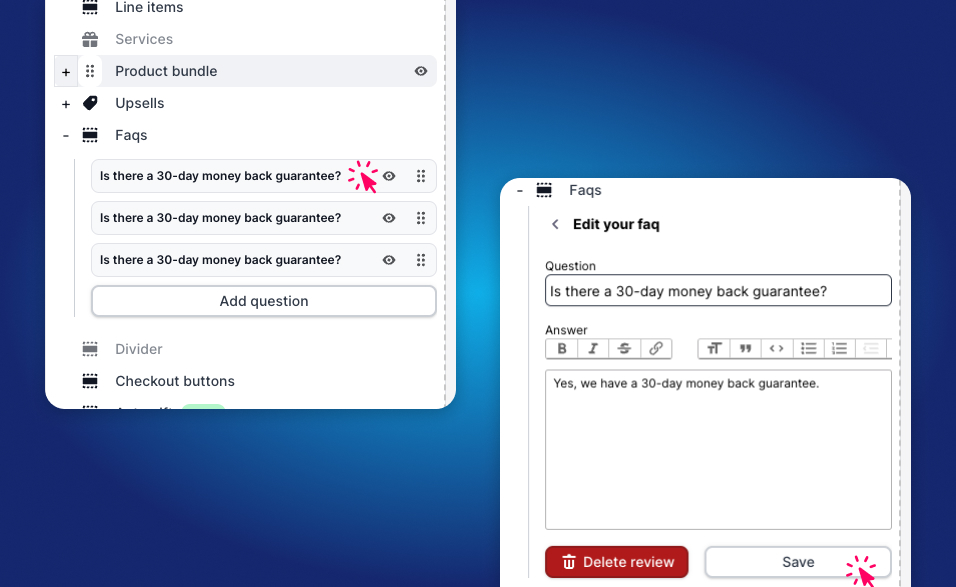
Here you can customize:
- Typography & Copy: Customize headings, descriptions, and dynamic tokens (like
{amount}or{days}). - Colors: Adjust background fills, accent highlights, border colors, and hover states.
- Padding & Spacing: Fine-tune margins, internal padding, and element gaps with visual sliders.
- Conditional Visibility: Configure cart rules to control exactly when this block appears.
4. The Re-Publish Workflow
Whenever you modify block copy, colors, or arrangements, your changes are saved automatically to your cart template.
[!IMPORTANT] Click “Re-Publish” to Push to Live Shoppers: To protect your live storefront from unfinished drafts, Supercart separates saved drafts from the published runtime. When your edits are complete, click the prominent Re-Publish button in the top header to instantly sync your changes to shoppers.